Webinar: game localization without the chaos
In the second Arcweave webinar, the focus is localization: how to set up languages, translate inside the editor, track progress, test the result, and get it all into your engine.
To keep things familiar, the demo reuses the project from our first webinar, complete with its coins, drunkenness, and charm variables.
Localization is available on Team workspaces only.
You can watch the whole recording of the webinar below.
Manage languages
Localization icon
Click the Localization icon at the top of the editor to open the localization menu.
The menu shows your current language (English by default) and gives you two options: Import Excel and Manage Languages.
Language properties
Inside Manage Languages, each language has three properties:
- Name, e.g.
Italian. - ISO code, e.g.
it, used in exports and engine plugins. - Translates from, which defines another language as the translation source.
This last field is especially useful for translators who cannot work from the project's Main language.
The Main language is considered the original language of the project and therefore does not have a Translates from field.
The fields are intentionally free-form, so you are not limited to real-world languages. Teams can just as easily create Quenya or Shakespearean English for their projects.
Translation Mode
When you translate, your project stays safe, as it switches into Translation Mode. This mode blocks narrative design actions like adding/deleting elements and other items, moving connections, managing variables, etc.
The only actions allowed in Translation Mode are editing content (always in reference to the source, "translating from," language) and setting the translation status.
Switch to Translation Mode
To switch to Translation Mode, simply select any language other than the Main, in the Localization menu.
To exit back to the normal, design mode, revert to the project's Main language, by selecting it in the Localization menu.
Translate
Once you switch to translation mode, untranslated text appears grayed out, and untranslated items carry a dedicated status icon, so it is easy to see what still needs work.
Translate elements and labels
To translate an element or connection label, just double-click it, as you would normally do with editing its content. Along with its content, an element's title is also translatable.
An overlay displays the original text alongside, so translators always have the source in front of them.
Translation mode is deliberately restrictive: you can only edit content, so there is no risk of moving or deleting project items by accident. Titles, element content, connection labels, and component names are all translatable.
Translate components
Once you translate a component's name, you can mention the component in the translated name, so it matches the rest of the translated.
Set translation status
Item translation status
To keep a team organized, right-click a translatable item (element, label, or component) and choose Set status. There are four states to set:
- Untranslated
- In progress
- Ready for review
- Final
You can set the status for multiple selected items at once.
If any text changes in the Main language, the translation status of the item automatically reverts to Untranslated. Translators immediately know that a line needs another look, and nothing quietly goes out of date.
Board translation status
The translation status of a board cannot be set manually. It is automatically generated, according to the status of the containing elements and labels.
Translation exports
Translation statuses are included when exporting to Excel.
Translate arcscript
By default, Arcscript blocks are non-translatable. This protects your code from breaking when it is carried across languages.
Sometimes, though, a block contains text that players will see, such as the word "coins" in the following expression:
You have
show(coins, " coins")
in your pocket
For such cases, a "translatable" toggle (shown as a globe) lets you localize the strings inside an arcscript segment.
There is a trade-off to be aware of: translatable arcscript segment is decoupled from the original, which means any change to the logic has to be repeated in every language.
Toggling "translatable" off reverts all localized versions back to the original, so you can always undo the decision.
Test in play mode
Play mode is the quickest way to check your work. Switch languages from the top bar and test any translation immediately.
Permissions
Anyone with edit rights, meaning owners and editors, can edit translations. Viewers and commenters cannot.
Export and import
For teams who work with external translators or localization tools, Arcweave offers a spreadsheet workflow:
- Export to CSV or Excel, either for all languages or for a chosen one.
- The file contains tabs for each entity type, with columns for each language's title, content, and status.
- Edit the translations outside Arcweave and update the statuses.
- Re-import via Localization → Import XLSX. A preview shows exactly what changed, and you choose which elements, connections, or components to import.
Why does this matter? Because translators can see the full narrative graph, they know who is speaking and in what context. That helps avoid serious context mistakes.
Unity integration
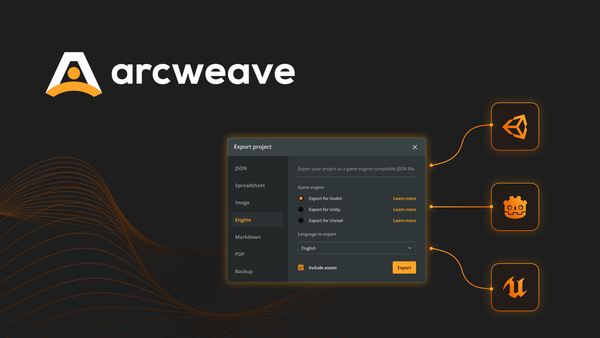
The webinar also demonstrates how localized project data is synched with a game engine like Unity, through Arcweave's REST API.
To import a different language, you simply change the ISO code and refetch, in the Unity editor.
A fallback option controls what happens when a translation is missing. You can show the main-language text, or show empty content, which is the safer choice.
Arcweave Localization: one source of truth
The intention behind the Arcweave Localization ecosystem is to preserve the one source of truth principle. Writers, translators, and developers can work at the same time in the same place, rather than passing files back and forth.
It scales, too: teams are already shipping projects with more than 500K words.
Other webinars
If you enjoyed this webinar, you can also watch the recording of the next one, on how to design advanced dialogue trees, right here on our blog.
And if you'd like to catch our webinars live, hop onto our Discord server, where we announce each session ahead of time. We'd love to see you there!
Arcweave lets you prototype and test narrative quickly, without pulling favors from your dev team.
Real-time collaboration, cloud-based sharing, and history make iteration and feedback much faster than traditional export-and-build cycles, and re-importing into Unity after changes is quick. Start creating in Arcweave for free, today!