Webinar: from Arcweave to game engine
This webinar moves from the Arcweave editor into the game engine. It walks you through the Arcweave plugin for Unity, using the Unity example project, which you can find on GitHub.
This webinar uses Unity, but you can apply the same knowledge for your integrations with Godot Engine and Unreal Engine, for which Arcweave has plugins as well.
The whole webinar keeps the perspective of a designer rather than that of a developer, getting into technical territory just enough to show how the integration works.
You can watch the full recording of the webinar below.
The example project
Recreate the example project
The demo starts from the Game Engine Example template. To recreate this, click the New project button, in your Projects section of your workspace and select Game Engine Example from the templates.
Example project structure
Plot: The story is small but complete. Wanda is wounded, so the player gets a healing potion from the healer and brings it to her. Global variables track the healer's health, Wanda's health, and whether the player is carrying the potion. You can test the whole thing in Arcweave's Play Mode before the engine is involved.
Components represent characters, items, and other game objects. The project includes character components for Wanda, Healer, and the Player, holding attributes like color, race, and object_id, which store values to be passed to the game engine. An Environment component stores information about the weather and time of day in the story.
Import into Unity
To import your Arcweave project into Unity:
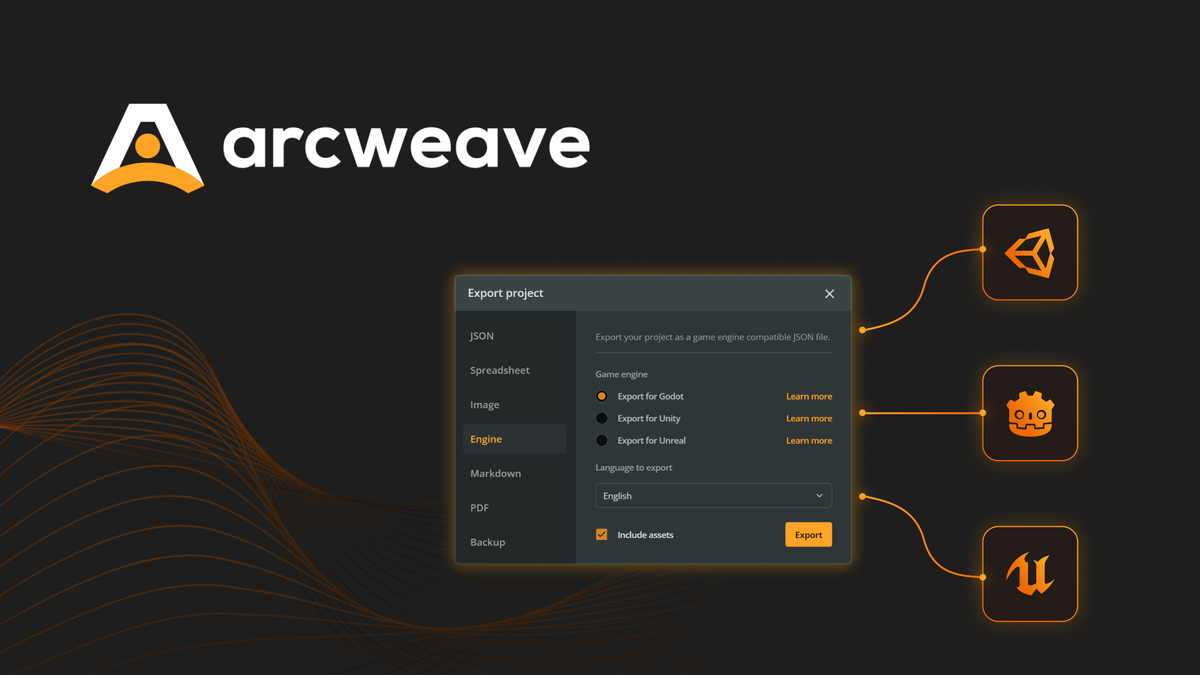
- Export for game engine: In Arcweave, go to Export. Arcweave supports JSON exports for Godot Engine, Unity, and Unreal Engine. Choose the language (if your project is localized) and whether to include assets. You get a JSON file (or a zip containing the JSON and the assets).
- Download the Unity example project: Visit Arcweave's GitHub repo and download the Unity Example project.
- Import the JSON: In the Unity editor, drop the JSON file into the Unity Αssets folder.
- Create Arcweave Project Asset: Right-click in the Assets folder and select Create > Arcweave > Project Asset. Set its source to JSON, drag in the file, and click Import. This scriptable object tells Unity how to interpret the Arcweave data.
- Assign to script: Assign the new Arcweave Project Asset to the Arcweave Player script in the scene hierarchy.
- Play: Press Play, to have the same quest now run in Unity, with every variable visible in an on-screen debug UI.
A quick troubleshooting tip: if you see errors after updating the plugin, the data schema may have changed. Use Tools → Arcweave → Reset Saved Progress to fix it.
How it works under the hood
Character prefabs carry a dialogue trigger script. When the player enters the interaction sphere and presses E, the script starts the board assigned to that character, which in this demo is referenced by name.
For start and end points, the project doesn't rely on the "first element" of a board. Instead, you add an attribute tag (for example dialogue_start or dialogue_end) to elements, and the game manager script looks for those tags. An alternative to the attributes is using components or a custom element ID, instead.
Handler scripts react to data changes. One shows or hides the potion based on a global variable, and another drives the health bar and its color from variables. All the scripts are in the GitHub repo and are covered in YouTube tutorials.
The point of all this is that developers set up the pipeline once. After that, designers can edit text, variables, and logic in Arcweave without touching code or building the game.
Live updates and iteration
There are two ways to get changes into the engine:
- The manual route: After you edit in Arcweave, re-export the JSON and re-import it to Unity.
- The API route: Switch the import source from JSON to Web, then enter your API key and project hash. Updates arrive without re-exporting.
The webinar demonstrates a handful of edits landing in the game:
- Change dialogue text
- A health bar goes from red to green
- Addition of variables
- Addition of a new dialogue option
- Change the healer's health
Logic is imported too, including new variables, conditions, and functions. Designers can build new branches or rebalance values without touching game code. Environment variables even changed the scene from day to night and from clear skies to rain.
Expand the demo
The webinar also demonstrates how to expand the demo by adding a new NPC: a fighter that can teach the player sword-fighting. Pay him 50 gold and you unlock a sword attack in Unity.
This requires the following additions to the project:
- A new Fighter component.
- A new Fighter Dialogue board for the dialogue tree between the player and the fighter.
- An attack component, which triggers the player's sword-fighting ability, once it's unlocked.
Flexibility and design decisions
Arcweave is flexible and unopinionated. Your team decides how to represent game objects: components on elements, attributes, or connections and choices. The UI mapping (image, text) is customizable in the Unity scripts.
A few things to keep in mind:
- Variables live in three places: global, board, and component. Elements can have attributes, but those can't be variables.
- If both a tag and a component mark a dialogue start, one takes priority (most likely the element attribute). This will be documented better.
Other examples
Other examples of the same approach include:
- The visual novel Unity example, which has its own tutorial.
- The submissions of our 2024 game jam Arcjam: The Card Game Challenge, where participants changed a card game's decks, art, audio, and mechanics purely by editing the Arcweave project and fetching via Arcweave's REST API.
Tips
Functionalities like "start the dialogue here", "end the dialogue here", and "unlock attack ability" can be assigned to components, which instruct the engine to trigger something, when reached in the story flow.
Prototype in Arcweave first, then implement the pipeline and let designers iterate freely using the Unity build. Everyone works in their own environment while Arcweave remains the single source of truth.
Switching from the original project to the fighter expansion only required switching the Arcweave project's REST API settings in Unity to the new project hash and API key. Teams can experiment this way without cluttering the game repo with branches.
Game builds include an in-game menu (press Escape) for importing from the web or from a local JSON. This means you can test story changes on the game build, without opening (or installing) Unity.
Resources
Plugin and example project repositories
Unity
Unreal Engine
Godot Engine
Tutorials and documentation
- Game engine (and other) integrations: Arcweave documentation
- Unity integration: text and video tutorials
- Unreal Engine integration: video tutorials
- Godot Engine integration: video tutorials
Other webinars
If you'd like to catch our webinars live, hop onto our Discord server, where we announce each session ahead of time. We'd love to see you there!
Arcweave lets you prototype and test narrative quickly, without pulling favors from your dev team.
Real-time collaboration, cloud-based sharing, and history make iteration and feedback much faster than traditional export-and-build cycles, and re-importing into Unity after changes is quick. Start creating in Arcweave for free, today!